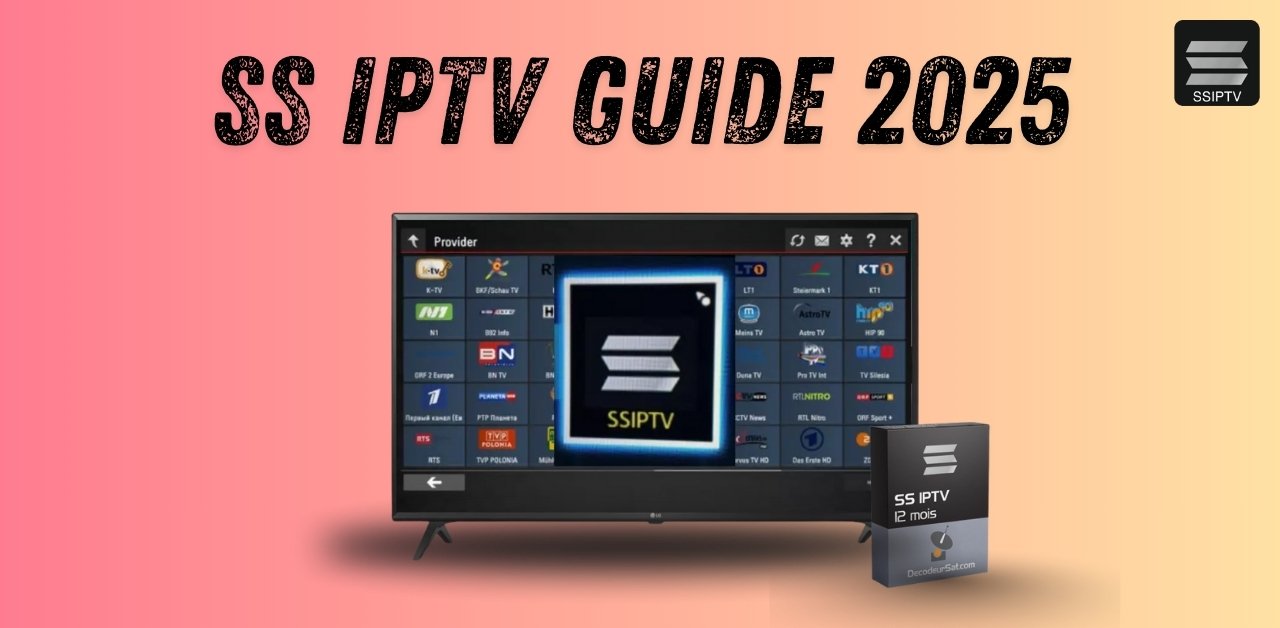
SS IPTV Guide 2025: How to Set It Up Step-by-Step on Your Smart TV
Introduction
If you’re a UK viewer looking to stream IPTV on your Smart TV, SS IPTV Guide 2025 is one of the most accessible apps available. It’s free, works without activation, and allows you to play IPTV streams using M3U playlists or built-in partner content. In this guide, we’ll walk you through the exact steps to set up SS IPTV on your Smart TV, upload your playlist, and start watching. No technical background needed.
What Is IPTV?
IPTV stands for Internet Protocol Television. It allows you to stream live TV channels and on-demand content over your internet connection instead of through traditional cable or satellite.
You install a compatible app, load your M3U or Xtream playlist from a content provider, and watch from your Smart TV, phone, tablet, or laptop. IPTV gives you flexibility, affordability, and access to thousands of channels and movies worldwide.
Learn more here: What is IPTV?
What Is SS IPTV?
SS IPTV (Simple Smart IPTV) is a free IPTV player for Smart TVs. It lets you stream content using M3U playlists, remote URLs, or regional provider feeds.
It became one of the first IPTV apps available on LG Smart World and continues to be a popular option for UK viewers who want a flexible, no-cost solution for IPTV streaming.
You can upload your own playlist, use open TV sources, or connect to a provider if available in your region. No activation or subscription is required for the app itself.
Devices That Support SS IPTV
- Samsung Smart TVs
- LG Smart TVs
- Android TVs
- Select Sony, Philips, Hisense models
- Android TV boxes
- Some Linux-based set-top boxes
How to Install SS IPTV on Your Smart TV
Samsung Smart TV
- Open Samsung Smart Hub
- Go to Apps
- Search for SS IPTV
- Install and launch the app
LG Smart TV
- Press Home
- Open LG Content Store
- Search for SS IPTV
- Click Install and open it
Android TV
- Go to the Google Play Store
- Search and install SS IPTV
- Launch the app once installed
How to Upload Your Playlist to SS IPTV
Web Upload Method
- Open SS IPTV and go to Settings > Content > External Playlists
- Write down your Connection Code
- Visit https://ss-iptv.com/users/playlist
- Enter the code and click Add Device
- Add a playlist name
- Paste your M3U URL
- Click Save
- Restart SS IPTV on your TV
- Your playlist will appear on the main screen
USB Upload (if supported)
- Save your M3U file on a USB stick
- Plug it into your TV
- Inside the app, go to External Playlists > Add from File
- Select your playlist and confirm
Optional Settings
Parental Control
- Default PIN is 12345
- Change or turn it off in Settings > Parental Control
UDP Proxy (if using udp:// links)
- Enable proxy in your router
- Enter the proxy IP and port under Settings > General
Language
- Change interface language in Settings > General
Troubleshooting Common Issues
Playlist not working?
- Double-check the M3U URL
- Test it in VLC Player
- Make sure your internet is stable
No video, only sound?
- Your TV might not support the video codec
- Ask your IPTV provider for a compatible stream
Black screen on app launch?
- Reboot the TV
- Try using a public DNS like 8.8.8.8
- Reinstall the app if needed
Forgot your PIN?
- Default PIN is 12345
- If changed, send a screenshot of your SS IPTV Info page to support@ss-iptv.com
Too Complicated? Try These IPTV Apps Instead
If you’re having difficulty configuring SS IPTV or your TV doesn’t support it, don’t worry. Many reliable IPTV apps are easier to set up and compatible with nearly all devices. Just paste your M3U or Xtream Codes login, and you’re ready to stream.
Android Devices
- B1G APP
- IBO Player Pro
- IPTV Smarters Pro
- HOT Player
Apple Devices
- IBO Pro Player
- Hot Player
- B1G APP
- IPTV Smarters Pro
Windows PCs and Laptops
- IBO Player Pro
- Hot IPTV
Firestick and Fire TV
Use these Downloader install codes:
- IPTV Smarters Pro – 1741047
- Hot Player – 3214597
- IBO Player Pro – 4226429
- B1G APP – 6463225
Nvidia Shield TV
Use the same install codes as the Fire TV Stick. All apps listed above work smoothly on the Nvidia Shield.
Smart TVs (Samsung, LG, Android TV)
- SmartOne IPTV
- Smart IPTV (SIPTV)
- Hot Player
- IBO Player Pro
These apps offer cleaner interfaces, EPG support, and easier remote playlist uploading, making them ideal for UK viewers new to IPTV or anyone looking for a quicker setup process.
Looking for a Playlist? Try British Stream TV
If you need a reliable M3U playlist to use with SS IPTV, we recommend trying British Stream TV — a premium IPTV provider trusted by thousands of UK viewers.
British Stream TV gives you instant access to over 30,000+ live channels and 190,000 movies and series, including premium UK, US, and global content. Everything is updated weekly and works perfectly with SS IPTV and other major players.
Why UK Viewers Choose British Stream TV:
- 30,000+ Live Channels
- 190,000+ Movies & Series
- Compatible with SS IPTV, SmartOne, B1G APP, and more
- Works on all devices: Smart TVs, Fire TV Stick, Android, iOS, Windows, MAG, STB
- No buffering, no contracts
- 24/7 Support via WhatsApp and Email
- Multiple payment methods, including card, PayPal, crypto, and UK bank transfer
- Private, secure streaming (no logs)
- Instant activation after purchase
Try British Stream TV for Free – Click Here
Setup Help – Installation Guides
Explore Packages – Visit British Stream TV
Whether you’re using SS IPTV or switching to another player, British Stream TV provides the stable, high-quality streams you need.
FAQs
Is SS IPTV free?
Yes, it is 100% free and requires no payment or activation.
Does SS IPTV come with channels?
No. You must upload your own playlist or connect with a content provider.
Can I use SS IPTV offline?
No. The app needs an internet connection.
How do I pay for content in SS IPTV?
You don’t. SS IPTV does not accept payments. Any content is provided by your IPTV service, not the app.
Is SS IPTV legal in the UK?
Yes. The app is legal. Just make sure the content you stream comes from a legal IPTV provider.
Conclusion
SS IPTV is a flexible, free IPTV player designed for Smart TVs. With support for M3U playlists, external content uploads, parental controls, and various formats, it’s a strong option for UK viewers who are comfortable with a manual setup process. If you prefer something quicker or more user-friendly, apps like B1G APP, IPTV Smarters Pro, or IBO Player Pro can provide a streamlined experience across all your devices. Either way, once you’re set up, IPTV gives you easy access to live TV, movies, sports, and more right from your screen.
Leave a Reply